

First step in this lesson is pretty straight forward and simple. My recommendation is to always follow the official documentation of any software we work with. Here is the Playwright official documentation site: https://playwright.dev/docs/intro
Step 1: Create a new folder at a location of your choice. Name it per your project requirements. For example, I am naming my new folder as 'pw1'.
Step 2: Open terminal or command prompt at that location. You can confirm if you are in the right directory by typing 'pwd' that should list the path where you are in terminal
Step 3. This is the command that installs playwright project, dependencies and creates a sample test case for you.
npm init playwright@latest
Let us take a look at this command:
npm : What is this? This is 'node package manager'. It manages all packages that are required for our project, we use this command initially while setting up the project for installing dependencies, packages that are required for our project.
init: It is short version of initialize/install playwright and its dependencies.
playwright@latest : We are asking npm to install latest playwright project dependencies for us.
Step 4: What happens when you run that command?
It is pretty straight forward and painless installation. It will ask you some basic questions and give you sugestions too. You will be given a choice to choose between programming languages 'TypeScrpt' and 'JavaScript'. You can select them using your arrow keys. For this project select TypeScript.
pw1 % npm init playwright@latest

> npx
> create-playwright

Getting started with writing end-to-end tests with Playwright:
Initializing project in '.'
✔ Do you want to use TypeScript or JavaScript? · TypeScript
✔ Where to put your end-to-end tests? · tests
✔ Add a GitHub Actions workflow? (Y/n) · true
✔ Install Playwright browsers (can be done manually via 'npx playwright install')? (Y/n) · true

Initializing NPM project (npm init -y)…
Wrote to /Users/sesha/develop/Playwrightprojrcts/pw1/package.json:

{
  "name": "pw1",
  "version": "1.0.0",
  "description": "",
  "main": "index.js",
  "scripts": {
    "test": "echo \"Error: no test specified\" && exit 1"
  },
  "keywords": [],
  "author": "",
  "license": "ISC",
  "type": "commonjs"
}


Installing Playwright Test (npm install --save-dev @playwright/test)…

added 4 packages, and audited 5 packages in 3s

found 0 vulnerabilities
Installing Types (npm install --save-dev @types/node)…

added 2 packages, and audited 7 packages in 758ms

found 0 vulnerabilities
Writing playwright.config.ts.
Writing .github/workflows/playwright.yml.
Writing tests/example.spec.ts.
Writing package.json.
Downloading browsers (npx playwright install)…
✔ Success! Created a Playwright Test project at /Users/sesha/develop/Playwrightprojrcts/pw1

Inside that directory, you can run several commands:

  npx playwright test
    Runs the end-to-end tests.

  npx playwright test --ui
    Starts the interactive UI mode.

  npx playwright test --project=chromium
    Runs the tests only on Desktop Chrome.

  npx playwright test example
    Runs the tests in a specific file.

  npx playwright test --debug
    Runs the tests in debug mode.

  npx playwright codegen
    Auto generate tests with Codegen.

We suggest that you begin by typing:

    npx playwright test

And check out the following files:
  - ./tests/example.spec.ts - Example end-to-end test
  - ./playwright.config.ts - Playwright Test configuration

Visit https://playwright.dev/docs/intro for more information. ✨

Happy hacking! 🎭
Step 5: Once it installs playwright software we can check the version of the playwright. by running the command:
npm playwright --version
11.3.0
While writing this article I see playwright version as 11.3.0 for me.
Step 6: Let us take a look at what the npm install command created for us.
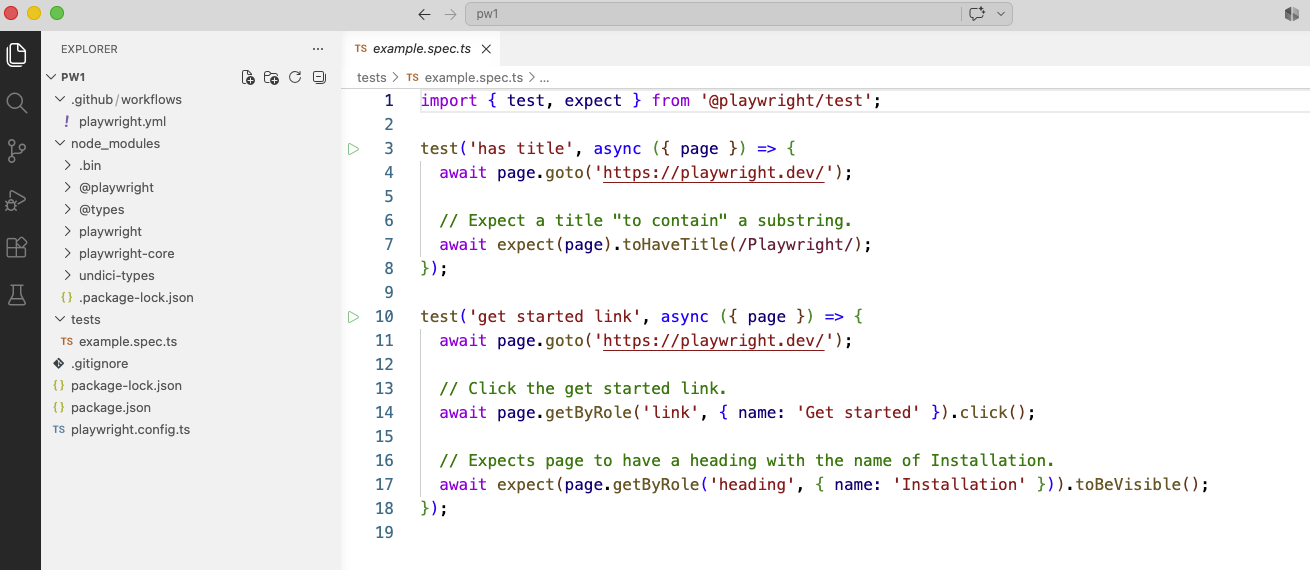
You can see that it created a sample test for us
Step 7: We need to make some changes to this project that we need all compiled .js files in dist folder and our spec.ts files in tests folder. Fpr that we need tsconfig.json file. To create tsconfig.json run below command.
> pw1 % npx tsc --init

Created a new tsconfig.json with:
                                                                                                                     TS
  target: es2016
  module: commonjs
  strict: true
  esModuleInterop: true
  skipLibCheck: true
  forceConsistentCasingInFileNames: true
Open tsconfig.json file and update it with below:
{
  "compilerOptions": {
    "target": "ESNext",
    "module": "CommonJS",
    "outDir": "dist",
    "rootDir": ".",
    "types": ["node", "playwright"],
    "strict": true,
    "esModuleInterop": true,
    "moduleResolution": "node",
    "resolveJsonModule": true,
    "skipLibCheck": true
  },
  "include": ["tests/**/*.ts"]
}
Open Playwright.config.ts edit it with below:
In defineConfig method add
  testDir: './dist',
  testMatch: ['**/*.spec.js'],
  retries: process.env.CI ? 1 : 0,
Now we are done with project setup. Run below commands and check if js files are generated in dist folder
>npx tsc
>npx playwright test
Once you executed the above commands succesfully, then run below command to see the test results.
npx playwright show-report